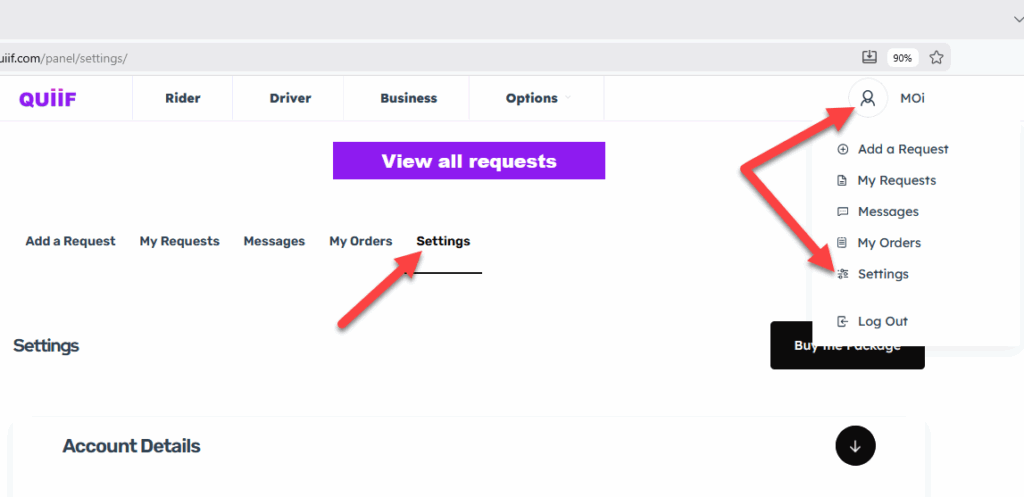
Hover over your profile image icon on the top right hand side and click on Settings.
Or just click on setting on the second menu
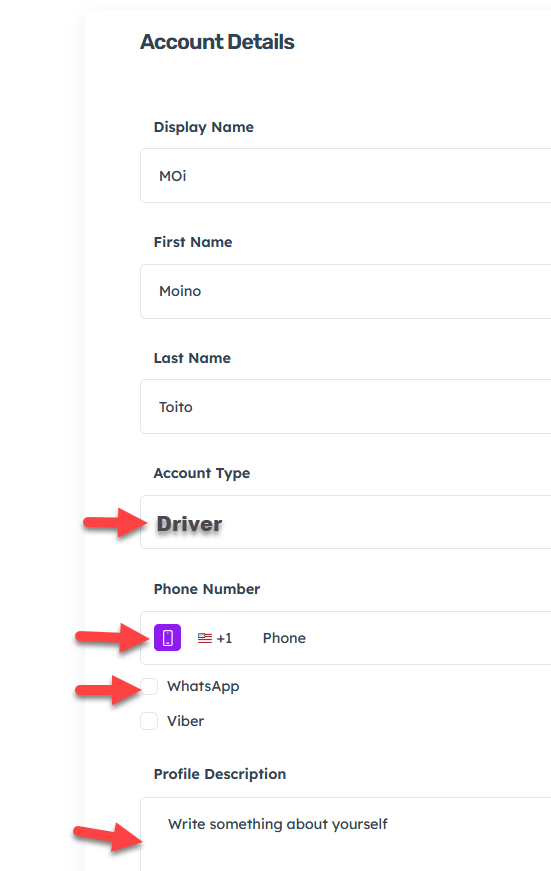
In the Account Details section, fill out your information including your cellphone number, your address, and check on WhatsApp and Viber. You could finish, if you like, with a brief description about yourself for your customers.
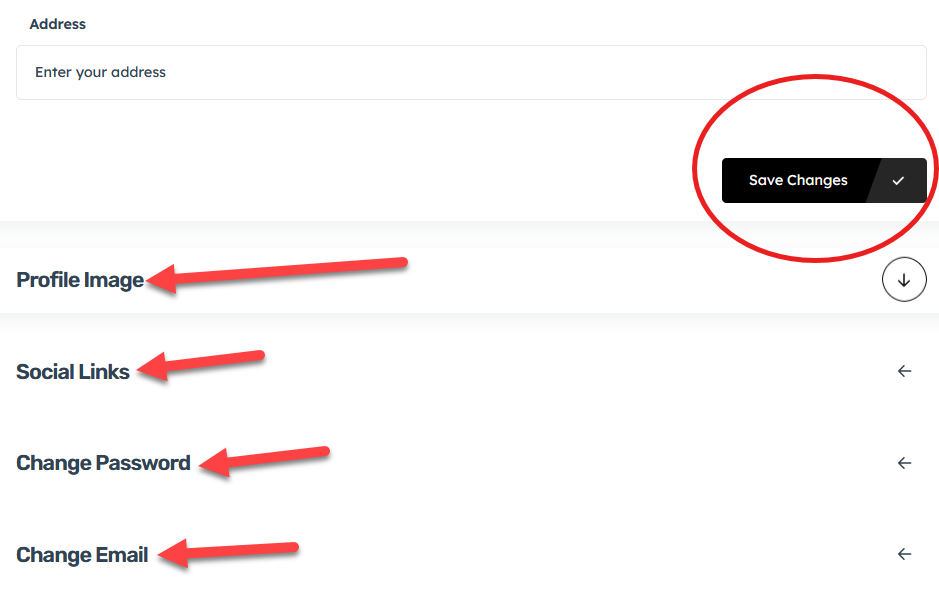
Now, scroll down and click on “Profile image” to upload a clean profile picture of yourself.
Then click on “Social Link” to share your social media pages(optional)
Then change your Password or Email address if needed
Finally, click on the button “Save changes ” to save your information
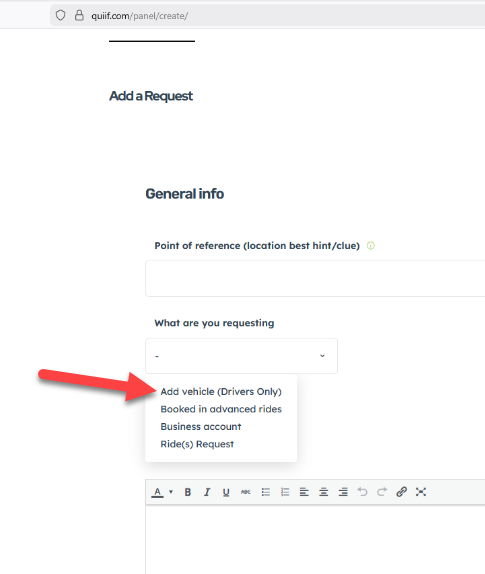
You may leave the Point of reference blank
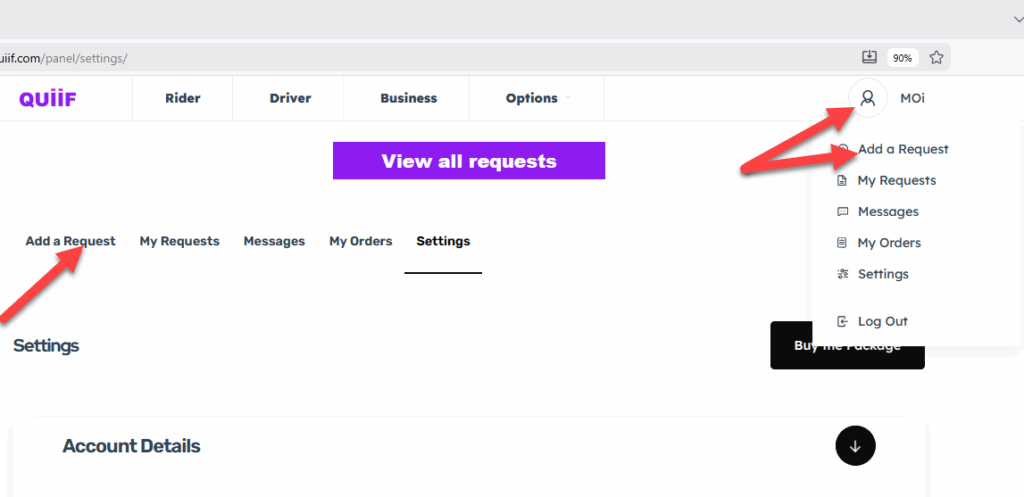
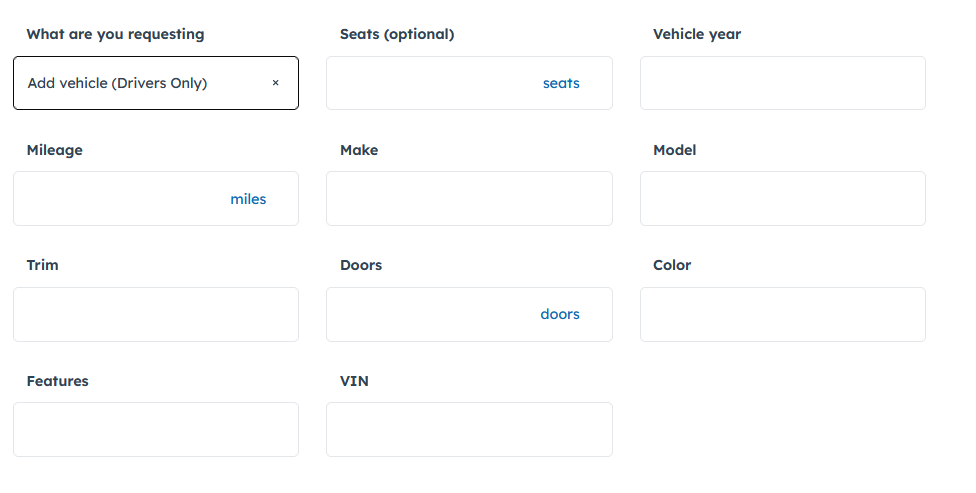
In the What are you requesting dropdown select “Add Vehicle (driver(s) only“
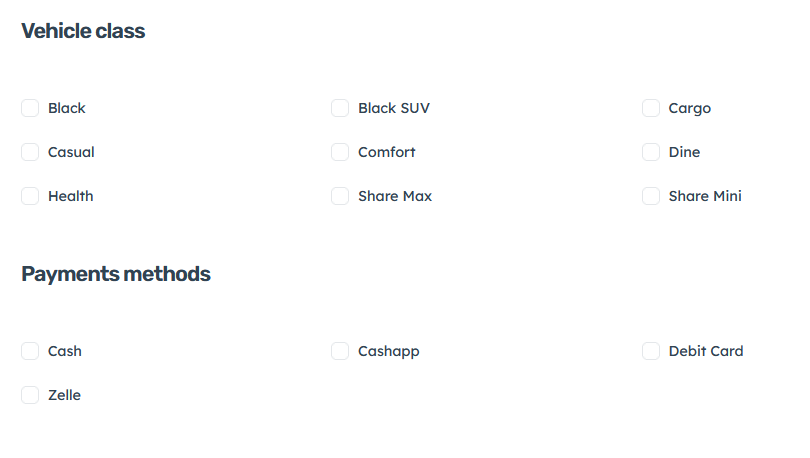
In the Vehicle Class section, choose the Quiif program or programs that you would like to drive for
Then pick the Payments Methods that you will be accepting
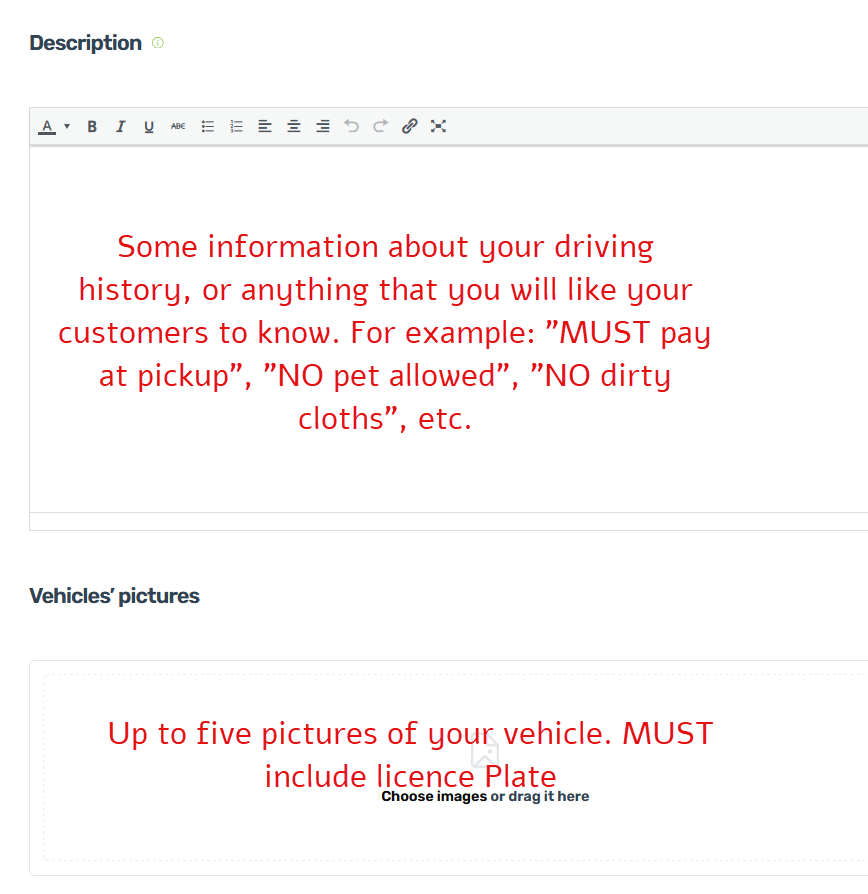
Add certain things that you would like your customers to know.
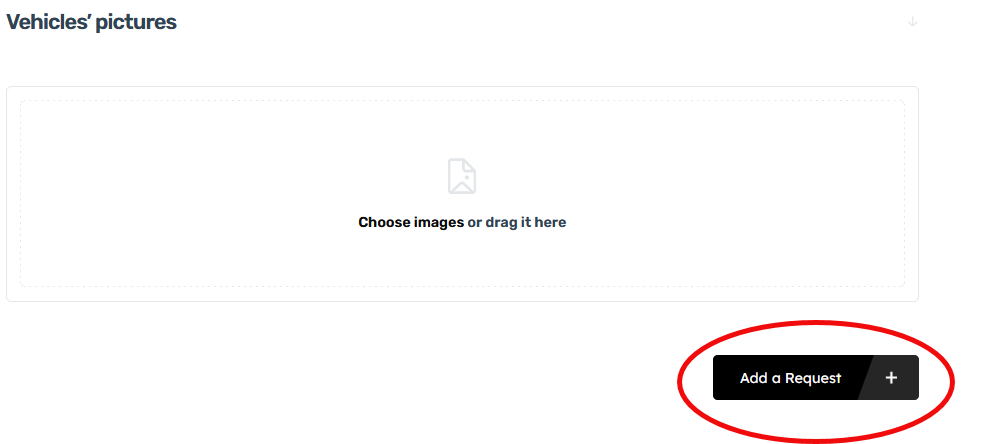
In the Vehicles’ Pictures, upload up to 6 pictures of your vehicle. They MUST include your license plate number